


A great video can lose viewers in the first 10 seconds if the pacing drags, captions are missing, or the hook never lands. The best AI video editors reduce that busywork, but they don’t replace your judgment about what deserves to stay in the cut.
Streamlining your video production starts with finding the right ai video editing software, because a fast vertical clip needs different help than a 40-minute interview or a polished brand explainer.
Key Takeaways
- CapCut is a strong low-cost choice for creators producing social media content who want templates, captions, and quick mobile edits.
- Descript ai makes spoken-word editing feel closer to revising a document, which suits podcasts, interviews, and tutorials.
- Tools like opus clip and VEED save time when you need captions and short clips from longer recordings.
- Runway, Kling, and every similar ai video generator are better for generated shots and visual experiments than traditional timeline editing.
- Monthly prices, export limits, credits, and feature access can vary by country and plan, so check the current checkout page.
What the Best AI Video Editors Actually Do
AI editing isn’t one feature. It is a set of practical helpers that handle repetitive tasks, such as transcribing speech, removing pauses, identifying clip-worthy moments, generating automatic captions, audio cleaning, reframing a horizontal clip to fit a new aspect ratio for vertical viewing, and finding rough cuts.
That distinction matters because top-tier AI video editors fall into two groups. The first group improves footage you already recorded. CapCut, Descript, Adobe Premiere Pro, VEED, and Filmora fit here. The second creates or alters footage with prompts, images, or reference clips using generative artificial intelligence. Runway, Kling, Sora, and Google’s Veo are better known for that work.
A social media manager may need both. For example, they might use Descript to clean a founder interview, OpusClip to suggest vertical highlights, then use CapCut for the final text, timing, and platform-safe export.
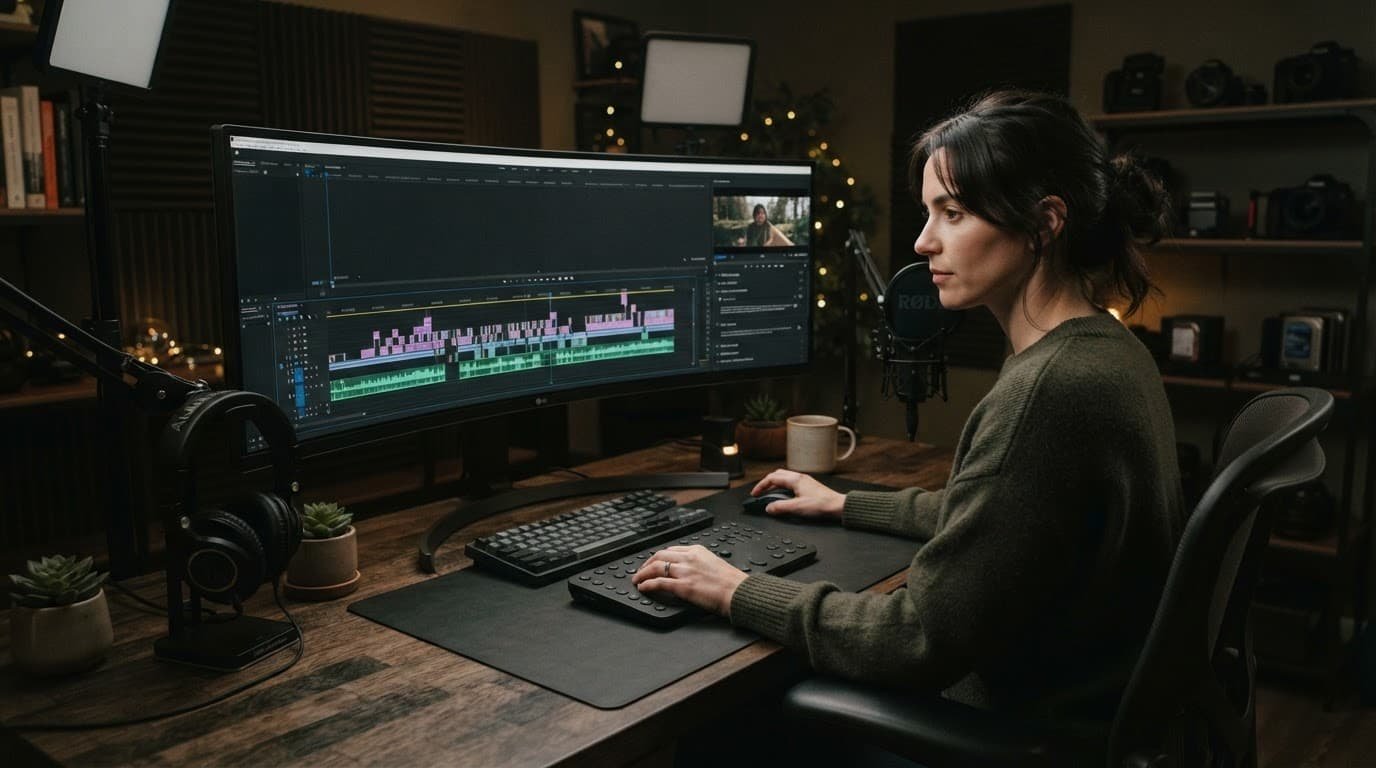
The most useful automation removes friction without deciding your message for you. Auto-captions can be fast, yet brand names, product names, accents, and industry terms still need a human proofread. A highlight detector can find an energetic sentence, but it can’t always tell whether the setup before it is what makes the moment meaningful.
AI is most reliable on repeatable production tasks. Your strongest editorial decisions still come from knowing the audience, the platform, and the point of the video.
Keep generated video separate in your budget, too. Zapier’s comparison of AI video generators is useful for creators deciding whether they need a standalone AI video generator alongside an ai video editing software package. Generation often uses credits or per-second pricing, while editing plans tend to use monthly feature tiers.
Best AI Video Editors for Social Clips and Reels
Short-form video rewards speed, but rushing the final pass can make a clip look generic. Captions need comfortable line breaks. The key sentence needs room to breathe. Music should support the voice, not bury it.
CapCut for fast social-first production
CapCut is the obvious starting point for creators who produce TikToks, YouTube Shorts, Instagram Reels, and simple product clips. Its appeal is practical: it offers mobile and desktop editing, auto-captions, templates, background removal tools, speech-related features, and quick resizing in a familiar timeline-based editor.
The free version is useful for testing a workflow. CapCut Pro generally adds more premium assets, cloud storage, higher-end export options, and additional AI tools. Current reporting places Pro around $7.99 to $10 per month in some markets, but that can change with location, billing term, taxes, and promotions.
CapCut works best when you want to turn a rough idea into a publishable clip quickly. Start with your spoken hook, cut every pause that weakens it, add readable subtitles, then make small changes to the caption style. Don’t let a template dictate the rhythm of the video.
Its weakness is that a project can become crowded with effects, stickers, and preset motion. For a small brand team, create two or three restrained templates and stick to them. Consistency beats a different visual gimmick in every post.
OpusClip for turning long videos into multiple posts
OpusClip is built around repurposing. Upload a podcast, webinar, interview, or YouTube video, and this popular opus clip tool identifies potential highlights to help you generate viral short clips. It can also adjust the aspect ratio to reframe speakers for vertical formats and add captions.
That makes it a sensible add-on for creators with a library of long-form material. The reported free allowance is 60 minutes per month, while paid plans have started around $15 monthly. Those limits and prices can move, so check what counts as processing time before committing.
Don’t publish every suggested clip. Some recommendations begin halfway through an idea, and others contain a strong quote without enough context. Review the opening three seconds, remove irrelevant setup, and write a caption that tells viewers why the clip matters.
VEED for browser-based team work
VEED is a good fit for teams that want a browser editor rather than a heavyweight desktop setup. It includes captions, translations, screen recording, basic editing, audio tools, and social-friendly exports for high volumes of social media content. Its reported language support is broad, which helps when your content crosses markets.
Plans have commonly started around $18 per month, though team seats and premium functions can change the total. For an international campaign, test captions in your target language with a native speaker before scheduling a batch of posts. Translation can be fluent while still missing local phrasing.
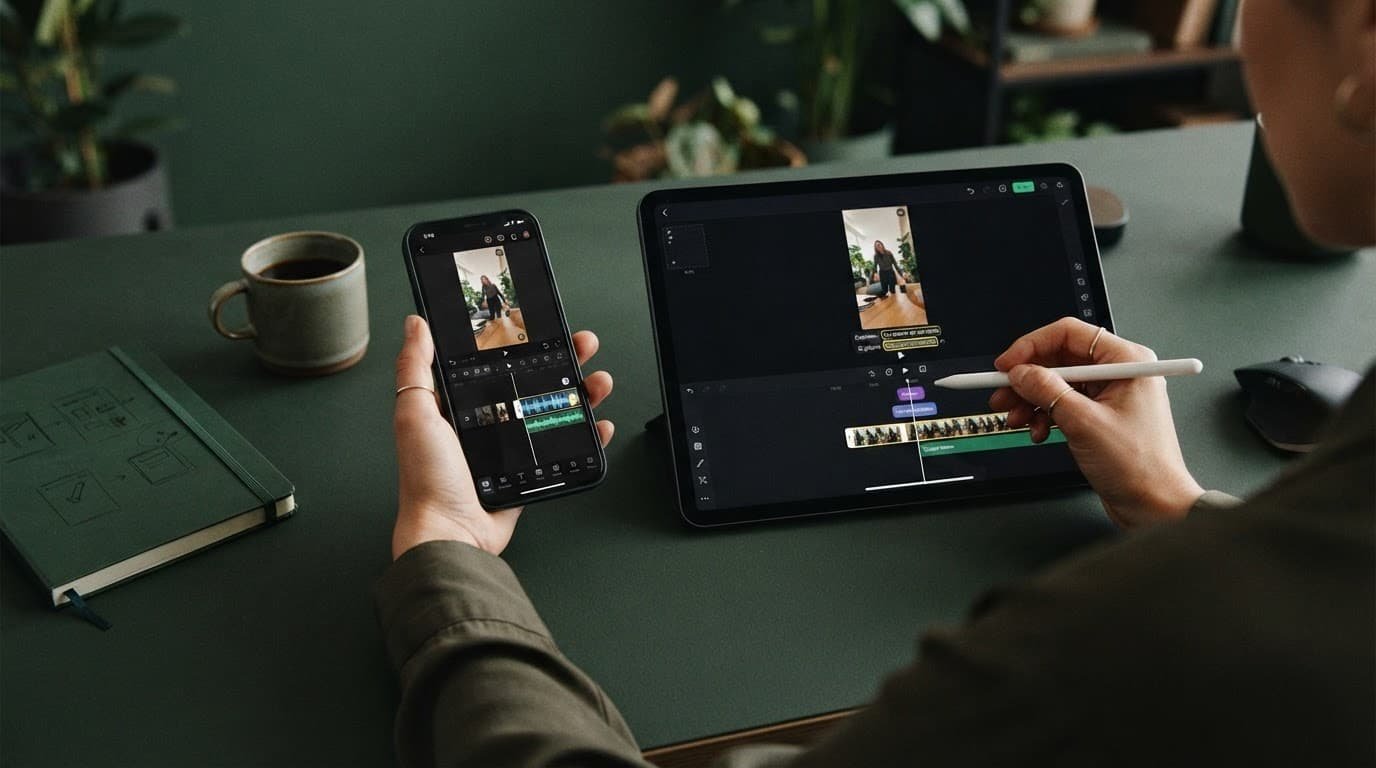
For content that needs quick approvals, VEED’s web approach can save the back-and-forth of sending project files. Still, use shared folders and a clear naming system. AI tools speed up edits, but they can’t fix a team that loses track of the approved version.
Descript Is the Standout for Podcasts and Talking-Head Video
Descript ai takes a different route. It transcribes your recording and lets you edit audio and video by changing the text. Delete a sentence in the transcript, and the matching section disappears from the timeline. That feels natural for podcasts, video interviews, training recordings, and founder-led explainers.
Creators also use it for filler-word removal, speech enhancement, voiceover generation, speaker labels, captions, screen recordings, and remote recording. The text-based editing workflow is especially useful when you know the message matters more than flashy visuals. You can scan a transcript far faster than you can scrub an hour of footage.
Paid Creator access has been reported around $12 per month, although feature limits, transcription allowances, and regional pricing vary. Review the plan details if you publish often or work with several speakers. A low entry price can become less attractive if your monthly transcription needs exceed the included allowance.
Descript isn’t the best pick for elaborate color grades, detailed keyframes, or high-control visual effects. It works best as the place where you build the story. You can then send the clean cut to Premiere Pro, Final Cut Pro, or CapCut for finishing.
For content repurposing, this approach has another advantage. Find the strongest sentence in the transcript, keep enough surrounding context to make it understandable, and build the vertical version around that section. A quote alone can attract attention, but a complete thought earns trust.
Adobe Premiere Pro and DaVinci Resolve for High-Control Edits
Some creators outgrow lightweight editors because their projects become more demanding. They work with multiple cameras, client footage, complex audio, color work, motion graphics, or long YouTube documentaries. AI can help here too, but the main reason to choose a professional editor is control.
Premiere Pro for established Adobe workflows
Adobe Premiere Pro includes AI-assisted features such as text-based editing, speech enhancement, caption tools, and creative generation powered by adobe firefly in the wider Adobe ecosystem. It is a natural choice if you already use After Effects, Photoshop, Audition, and Frame.io in a client workflow or for demanding commercial projects.
The subscription cost is higher than many creator apps, and the learning curve is steeper. However, its precision matters when a client needs revised versions, branded graphics, exact audio adjustments, and a project that another editor can open later. The CMO’s 2026 editor review also places Premiere Pro among the professional-grade options for advanced AI support.
Treat text-based editing as a first pass. It can quickly remove an answer you know won’t make the final video. Then listen through the transition points. Removing spoken words changes rhythm, breath, and emotional timing.
DaVinci Resolve for finishing and color work
DaVinci Resolve has a powerful free edition and a paid Studio version. It is widely respected for color grading, but it also covers editing, visual effects, and audio post-production in one program. Its AI-powered features are more appealing when you work with high-quality footage and need refined finishing that complements adobe firefly workflows.
The trade-off is complexity. A beginner who only needs captions for three weekly Reels may move faster in CapCut. On the other hand, a YouTuber filming interviews with multiple cameras can benefit from Resolve’s organization, color tools, and detailed control.
Choose Resolve because you need its core editing and finishing strengths. Don’t choose it only because it has AI features or because you want to test advanced video editing skills on basic tasks. The software asks more of your computer and your time, so it pays off when your production needs justify the learning investment.
Runway and Kling for Original AI-Generated Visuals
Traditional editing makes existing footage stronger. Tools powered by generative artificial intelligence can create a missing visual, extend a shot, replace a distracting background, or produce stylized ai b-roll. That can help a creator with a limited shoot, but it also introduces a different set of risks.
Runway is a popular choice for experimenting with generated video, image-to-video animation, cleanup, and effects. As a reliable ai video generator, it suits a creator producing mood shots, concept clips, stylized transitions, or unusual visual treatments.
Kling has also become a major option for prompt-based editing and generation. It can produce striking results, including digital avatars, yet output quality changes from prompt to prompt. Build time for retries into your schedule.
These tools are not substitutes for honest footage when you are documenting a real person, product, location, or event. If you use generated shots in commercial content, follow the platform’s disclosure rules and the tool’s terms. Avoid using a person’s likeness without permission.
Small marketing teams should also check commercial-use terms, data handling, generation credits, and export resolution before using generated video in an ad campaign. A tool’s low monthly price may cover only a modest number of clips.
How to Choose an AI Video Editor Without Paying Twice
The best AI video editors are the ones that fit into your actual publishing routine. Before subscribing, track one month of output. Count your long videos, short clips, podcast minutes, client revisions, and languages. Those numbers reveal where automation will save the most time across your video production workflow.
Use this quick comparison as a starting point.
| Tool | Best fit | Useful AI features | Watch for |
|---|---|---|---|
| CapCut | Reels, Shorts, mobile-first clips | Captions, templates, resizing | Premium features and asset access vary |
| Descript | Podcasts, interviews, tutorials | Transcript editing, filler removal | Less control over advanced visual work |
| Opus Clip | Repurposing long recordings | Clip selection, vertical reframing | Suggested clips require an editorial review |
| VEED | Browser-based team editing | Captions, translations, recording | Plan limits can affect output volume |
| Premiere Pro | Client and production workflows | Text editing, speech tools | Subscription cost and learning curve |
| DaVinci Resolve | Color-focused long-form projects | AI-assisted professional tools | More demanding workflow and hardware |
| Runway or Kling | Generated inserts and experiments | Text-to-video, image-to-video | Credits, rights, and inconsistent results |
The practical takeaway is simple: don’t buy overlapping tools without a clear handoff. A creator might need Descript plus CapCut because one edits the conversation and the other finishes social clips. Yet CapCut, VEED, and another caption app can easily duplicate the same job.
Test with real footage instead of a polished demo. Upload a challenging interview with cross-talk, an outdoor clip with wind noise, or a recording with a product name that caption systems might miss. Measure the time from raw file to approved export.
Also check these details before you subscribe:
- Your normal export resolution, watermark rules, and whether 4K needs a higher plan.
- How many transcription minutes or generation credits you receive each month.
- Whether collaborators can comment, edit, or export without purchasing separate seats.
- Commercial rights for templates, stock assets, voices, and generated footage, especially when deploying an ai video generator or adobe firefly features for client deliverables.
- Privacy settings for client recordings, interviews, and unpublished campaigns.
Adopting quality ai video editing software can cut routine work by a meaningful margin, but it can also encourage careless publishing. Set aside a final quality pass for captions, audio levels, cropped faces, music rights, and calls to action. That five-minute review protects the hours you saved earlier, allowing creators of any background to elevate their video editing skills safely.
Build a Simple Creator Workflow Around AI
A reliable video creation workflow starts before the editor opens. Record clean audio, give speakers space between questions, and collect b-roll with a purpose. AI can repair some imperfections, but it can’t make muffled audio sound like a studio recording.
First, put your long recording into Descript, Premiere Pro, or another editor that handles transcription well. Mark the useful sections, remove mistakes, and build a strong long-form cut. Keep the original project and media organized because future content repurposing often comes from a video you thought was finished.
Next, create short-form versions. OpusClip can offer ideas, while CapCut or VEED can help you finalize the framing, subtitles, visual hook, and platform-specific timing inside a timeline-based editor to generate viral short clips. Keep each clip focused on one idea.
Finally, use Runway or Kling only where generated visuals add real value. A quick illustrative insert or ai b-roll can help explain an abstract topic, while digital avatars can scale communication if used sparingly. A full sequence of invented shots can distract viewers if it doesn’t match the rest of the production.
Frequently Asked Questions
Which AI video editor is best for complete beginners?
CapCut is generally the best starting point for beginners producing social media content. It offers an intuitive interface, automatic captions, and helpful templates that make quick mobile and desktop edits straightforward.
Can AI completely replace human video editors?
No, AI cannot fully replace human judgment or storytelling. While tools automate transcription, captioning, and rough cuts, human creators still need to verify accuracy, pacing, and emotional impact.
What is the difference between AI editing tools and AI video generators?
AI editors like Descript and Premiere Pro improve and trim footage you have already recorded. In contrast, AI video generators like Runway and Kling create completely new visual shots or animations from text and image prompts.
Final Thoughts
The right editor removes the task you dread most, whether that is finding clips, correcting captions, cleaning a podcast, or building a first cut. AI video editors work best when they support a clear production process instead of becoming another monthly subscription with unused credits. Modern ai video editing software brings advanced features like prompt-based editing and built-in options inspired by adobe firefly right into your timeline.
When you integrate a reliable video upscaler and streamline your video creation workflow, you can focus more on storytelling. Start with one tool that matches your most frequent format, test it on real work, and only add another app when it solves a distinct problem. Your voice, taste, and final review remain the parts viewers remember.Artificial Intelligence 2026: What It Does and Where It Fits