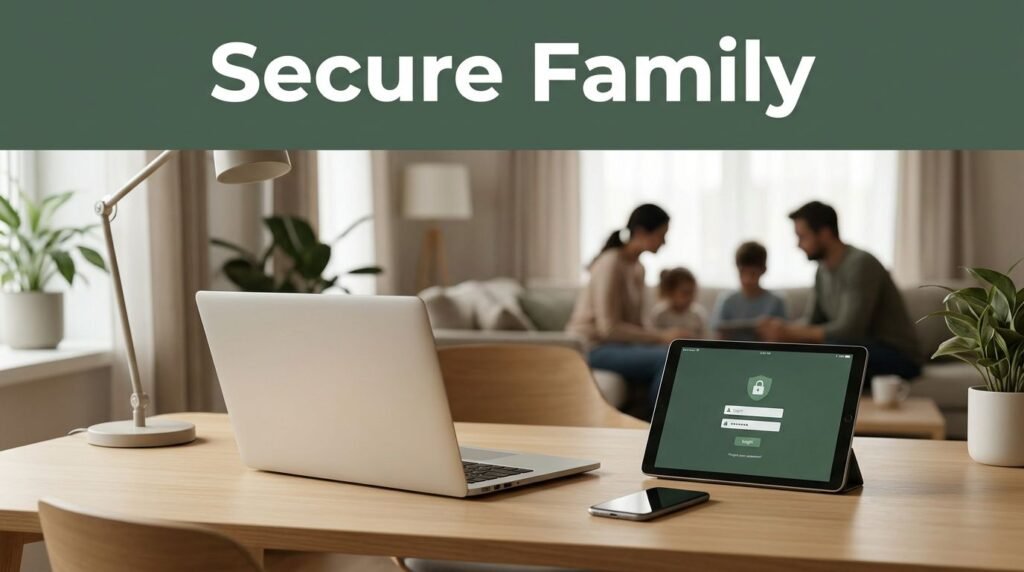

A shared streaming login might seem harmless, but sharing a password for your email, tax portal, or home security account is a significant security risk. Utilizing the best family password managers allows you to give every person in your home a private digital space while keeping essential household accounts accessible when needed.
These services replace insecure practices like text messages, browser notes, and overworked shared logins with robust security features. By relying on AES-256 encryption and end-to-end encryption, these platforms ensure that your sensitive household data remains completely private and protected from unauthorized access. The right choice for your home depends on who needs access, how comfortable everyone is with technology, and how much recovery support your family requires.
Key Takeaways
- 1Password Families stands out as the best all-around password manager for households that prioritize polished applications, intuitive shared vaults, and reliable account recovery support.
- Bitwarden Families provides the best value for privacy-conscious families who prefer open-source software and highly flexible sharing collections.
- Dashlane Friends and Family is an excellent solution for larger households, offering a user-friendly interface that supports up to 10 individual member accounts.
- NordPass is a strong contender for families seeking a streamlined experience that emphasizes ease of use across all devices.
- Every household member should maintain their own unique account, even when they share credentials for common services.
- Implementing emergency access features serves as a critical safety net, while robust multi-factor authentication and a clear recovery plan are more important for your digital security than having the longest list of extra features.
What a Family Password Manager Should Do
A family password manager stores logins in encrypted vaults and fills them on phones, tablets, laptops, and browsers. These tools rely on zero-knowledge architecture, ensuring that your sensitive information remains encrypted and inaccessible to anyone, including the provider itself. More importantly, it lets you share selected credentials without exposing every account you own.
That separation matters. A teenager may need the family music subscription and school printer login. They do not need access to your bank, work accounts, or medical portal. Likewise, a partner may need the Wi-Fi router password but not a personal email account.
Top-tier family plans provide individual vaults for each family member plus one or more shared spaces. By using a shared vault, specific people can use a login without ever seeing your actual password. These plans typically offer unlimited devices, ensuring your entire household stays protected across every screen they use.
Look for these practical features before comparing prices:
- Individual accounts for each person, including children who are ready to manage their own logins.
- A shared vault with clear membership controls, so access stays limited to the right people.
- A powerful password generator and robust passkeys support across all major browsers and mobile devices.
- Multi-factor authentication to secure every account in the household.
- Proactive dark web monitoring and regular data breach scanning to catch compromised accounts before they cause harm.
- Recovery options that ensure the household is not locked out after a lost phone or forgotten password.
- Security alerts that flag weak, repeated, or exposed credentials.
A password manager should reduce the number of people who know a password, not create one giant password list for the whole house.
Modern tools also include a password generator to ensure every account has a unique, high-entropy login. Additionally, autofill helps families avoid fake sign-in pages. Instead of typing credentials into every page that asks for them, the manager recognizes the real website or app. That extra pause can prevent a rushed click from turning into an account takeover.
Family Password Manager Plans Compared
Prices below reflect commonly listed annual-billing rates in July 2026. Password manager providers change plan names, promotions, taxes, and renewal prices, so confirm the total at checkout before subscribing.
| Family password manager | Typical annual-billing price | Included people | Strongest fit | Sharing approach |
|---|---|---|---|---|
| 1Password Families | $4.99 per month | Up to 5 | Most households | Shared vaults and guest accounts |
| Bitwarden Families | $3.33 per month | Up to 6 | Value and privacy | Collections with granular access |
| Dashlane Friends & Family | $7.49 per month | Up to 10 | Larger families | Shared credentials and groups |
| Keeper Family | $6.25 per month | Up to 5 | Control-focused households | Shared folders and permission levels |
| NordPass Family | $4.99 per month | Up to 6 | Easy navigation | Shared folders |
| RoboForm Family | $4.79 per month | Up to 5 | Traditional users | Shared folders |
| Proton Pass Family | $4.99 per month | Up to 6 | Security enthusiasts | Shared vaults |
The cheapest plan is not always the best value. A service becomes expensive if relatives stop using it because autofill feels awkward or recovery feels confusing. On the other hand, paying for 10 seats makes little sense for a two-person household with occasional guest access.
When comparing these services, look for options that support unlimited devices so that every household member can stay synced across all their hardware. You should also ensure that the provider offers robust browser extensions that make the login process seamless on desktop. Reliable cross-platform sync is another critical factor, as it ensures your family can access shared passwords whether they are on a mobile phone, tablet, or home computer.
Finally, check how each provider handles account recovery. Password managers use encryption designed to keep the provider from reading your vault. That protects your data, but it can make recovery more strict. A strong family plan should give you a practical route back in without turning your private vault into something every family member can open.
1Password Families: Best All-Around Choice
1Password Families is a comfortable fit for most homes because its apps are polished and its sharing model is easy to understand. Each member gets a private vault, while household vaults can hold common accounts such as utilities, subscriptions, appliance apps, and emergency contacts. The 1Password platform is particularly user-friendly, offering seamless biometric login and support for passkeys, which makes the login process much smoother for less technical family members.
The plan covers up to five family members. It also includes guest access, which is useful when a caregiver, house sitter, or adult child needs a temporary login. You can provide access to a shared vault with that person rather than adding them to the entire family plan.
Its Travel Mode can remove selected vaults from devices before a border crossing, then restore them later. That feature will not matter to every family, yet frequent travelers may appreciate the added control. 1Password also integrates perfectly with mobile devices to ensure your security travels with you.
1Password also makes recovery less intimidating. Family organizers can help a locked-out member regain access, but they do not automatically see that person’s private vault. That balance works well when one parent is more comfortable with technology than everyone else.
The main drawback is price. At its usual annual rate, it costs more than Bitwarden. Still, the clearer interface, reliable recovery process, and 1Password ecosystem can justify the difference when several people use it daily.
Bitwarden Families: Best Value for Privacy-Minded Homes
Bitwarden Families is the practical choice for households that want a lower ongoing cost without sacrificing core security features. This plan supports up to six users and utilizes shared collections to organize credentials effectively. Bitwarden remains a top-tier option for those who prioritize transparency, as the service is built on open source code that undergoes regular security audits to ensure robust protection for every family member.
A collection can hold household accounts, while personal vaults stay separate. For example, you can create collections for home services, entertainment, and school, then add only the people who need them. This structure takes a little more setup than some competitors, but it gives organized families granular control over their data. Because Bitwarden uses a zero-knowledge architecture, you can rest assured that your private information is encrypted before it ever leaves your device.
The interface is functional rather than luxurious. Some relatives may find the settings less intuitive at first, especially on mobile devices. Take time to install the browser extension and enable autofill before asking everyone to integrate it into their daily routine.
The Bitwarden family plan includes valuable premium features, such as security reports and emergency access. Emergency access is a standout tool that lets you designate a trusted person who can request access to your vault after a waiting period. This feature is particularly helpful during a medical emergency or a long absence, though it deserves a careful family discussion before you turn it on.
Dashlane Friends & Family: Best for Bigger Households
Dashlane Friends & Family supports up to 10 accounts, which makes this service appealing for blended families, adult children, or households that include grandparents. Everyone can keep private passwords while sharing selected household credentials securely. Because Dashlane supports up to 10 users, it is often the most practical choice for larger groups compared to other options.
Its interface is clean and beginner-friendly, which matters when family members use different devices or do not enjoy troubleshooting browser extensions. Dashlane supports all major browsers and offers intuitive mobile apps, so it covers the phone in a backpack, the tablet on the sofa, and the laptop in the home office. Beyond simple storage, the platform enhances your digital security with integrated dark web monitoring and proactive data breach scanning to alert you if your information is compromised.
The plan usually costs more than 1Password Families or Bitwarden Families. Therefore, its value improves as more people actively use the included seats. A household of eight may find Dashlane less expensive per person than a five-member plan that requires buying extra accounts. Users also benefit from privacy-focused features like email masking, which helps keep your personal inbox free from spam and tracking.
Dashlane also includes password health reports that identify reused or weak passwords. Treat those alerts as a to-do list, not a reason to change every password in one stressful evening. Start with email, financial accounts, mobile carrier logins, and any account that controls password resets.
One limitation applies to every password manager: a shared login is still a shared login. If an online service offers separate profiles or delegated access, use that option instead. A separate profile creates a clearer record of who changed a setting or made a purchase.
Keeper Family: Best for Detailed Sharing Permissions
Keeper Family is a robust option for households that want granular control over their digital security. The plan includes five private vaults and allows you to organize information into a shared vault or shared folders with specific permission settings, such as view-only, edit, or share.
This level of control suits families managing complex assets like rental properties, a vacation home, or various smart-home systems. You can grant a family member the ability to access a garage door app without allowing them to change the password or invite other users. Furthermore, you can trust that Keeper protects your data with encryption standards verified by regular independent security audits.
Keeper also offers secure file storage with family plans, though storage limits and add-ons can vary. Use this feature for documents that require household access, such as insurance details or a scanned pet vaccination record. Keep in mind that your password manager is not a substitute for a comprehensive cloud backup system.
Because the interface includes a wide array of settings, it may feel busy for relatives who prefer the simplest possible experience. When onboarding family members, ensure they understand the importance of choosing a strong master password that they can easily remember. Before committing to a subscription, install the free version or trial on the devices your family actually uses and test autofill on a smartphone rather than relying solely on a desktop browser.
Apple and Google Password Tools: Fine for Simple Households
Apple’s Passwords app and Google Password Manager are convenient because they come built into devices many families already own. They support passkeys and can save strong, unique passwords with little effort.
Apple’s shared password groups work best when everyone uses Apple devices and participates in the same family ecosystem. Google also allows password sharing in supported setups, which can help Android and Chrome households.
However, these tools can feel limited once a family mixes iPhones, Windows PCs, Chromebooks, Android tablets, and several browsers. Reliable cross-platform sync is where dedicated family password managers usually pull ahead. While built-in options are free, providers like NordPass, RoboForm, and Proton Pass offer more robust features, including the ability to manage credentials across unlimited devices regardless of the operating system.
Built-in tools also offer less control over recovery and complex sharing. They may be enough for a couple with a few shared subscriptions, but a household with children, smart-home accounts, and mixed devices will usually benefit from a paid family plan that offers centralized management and stronger security oversight.
How to Choose the Right Password Manager for Your Household
Start with your device mix. A family that uses iPhones, Macs, and iPads may be happy with Apple’s built-in tools. If one person uses Windows, another uses Android, and a child has a Chromebook, test cross-platform autofill performance before choosing a plan. Above all, prioritize a provider that utilizes zero-knowledge architecture to ensure that your sensitive data remains encrypted and inaccessible even to the company hosting it.
Next, count the people who need their own account. Include teenagers, adult children living at home, and a trusted relative if they will manage emergency access for the group. Avoid sharing one master password between spouses or siblings, as this compromises individual security and audit trails. Every user should have a unique master password to ensure that separate accounts make it easier to remove access when circumstances change or a family member leaves the household.
Then consider how you share accounts today. Write down the services that belong in a household vault, such as your internet provider, utility sites, streaming services, router administration, alarm systems, smart locks, pet care, and school accounts. Personal banking, individual email, work logins, and private health records should always remain private.
Recovery is the final deciding factor. Some services let family organizers assist with account recovery. Others use emergency access contacts with a defined waiting period to protect against unauthorized account takeovers. Read the recovery process while everyone still has access, not after a phone disappears or a critical password is forgotten.
Set Up Shared Vaults Without Creating New Risks
A careful first hour saves years of password confusion. Create each family member’s account first, then build shared spaces around real household needs.

Photo by Kindel Media
Begin with a small set of vaults or collections. One named “Household” can hold utilities, internet, and Wi-Fi details. Another for “Subscriptions” can contain streaming, grocery delivery, and shared software. Keep “Emergency” limited to adults or trusted caregivers, with items such as insurance contacts and the password manager recovery instructions.
Give every person a long, unique master password. A memorable passphrase with several unrelated words serves as an excellent master password because it is easier to retain than a short, complex string. Never put that master password inside the same password manager vault where it could be compromised.
Turn on multi-factor authentication for every family member. An authenticator app is usually stronger than text-message codes because phone numbers can be hijacked. Many services also support biometric login, which provides a convenient and secure way to access your vaults. Be sure to save your recovery codes in a protected place, such as a sealed paper copy stored with important documents. If you want to reduce spam while protecting your privacy, utilize email masking to create unique aliases for family members.
Use the built-in password generator for new accounts. Set it to create unique credentials, then replace old reused passwords in order of risk. Start with primary email addresses, banks, credit cards, mobile carriers, and cloud storage, as these accounts can often reset everything else.
Finally, check access after setup. Remove a child from a shared vault when they no longer need an account. Revoke a guest after the house sitting ends. Change passwords after a breakup, a roommate move-out, or a lost device.
Teach Children Safe Password Habits Early
Children do not need a technical lecture about encryption. They simply need a few clear rules they can recall when a game, school site, or social app asks for a login.
Explain that passwords are private, even from close friends. A shared game account may seem harmless, yet it can lead to lost purchases, unwanted messages, and exposed personal details. You can use the built-in password generator within your family plan to help them create secure, unique credentials without asking a child to invent or remember complex strings. Parents can also utilize parental controls to monitor which accounts are accessible, ensuring that young users remain within safe digital boundaries.
Show them how autofill works only on the correct app or website. If the manager does not offer the saved login, they should stop and ask an adult rather than type the password manually. This habit helps them recognize suspicious pages and phishing attempts. By leveraging parental controls, you can limit access to sensitive areas of the vault while still providing the necessary tools for your children to manage their own online presence.
As children gain independence, move accounts out of the shared family vault and into their own individual vaults. Keep only the accounts that are truly shared, such as streaming subscriptions. Transitioning to individual vaults is an essential part of teaching healthy password management, as it fosters long-term responsibility for their personal digital privacy.
Frequently Asked Questions
Can family members see my private passwords in a family plan?
No, they cannot. A reputable family password manager uses a private vault for each individual account, ensuring that only you can access your personal credentials while shared items are stored in separate, designated vaults.
What happens if a family member forgets their master password?
Most family plans include recovery features specifically designed for this scenario. Usually, a designated family organizer can help a locked-out member regain access to their account, provided you have configured these recovery settings ahead of time.
Is it safer to share one master password for the whole household?
Sharing a master password is a significant security risk and is strongly discouraged. Every family member should maintain their own unique master password and individual account to ensure that sensitive personal data remains secure and to maintain an accurate record of account activity.
Do I need to be tech-savvy to use a family password manager?
Modern password managers are designed to be user-friendly for all ages. Features like autofill, biometric unlock, and intuitive browser extensions make daily use seamless, even for those who are not particularly comfortable with technology.
Final Thoughts
The best family password managers make digital access safer without turning every small task into a support request. When making your final decision, consider services like 1Password, NordPass, RoboForm, or Proton Pass, which offer varied features depending on your household needs. Always choose a service that even your least technical family member can use with total confidence.
Set up private accounts, share only the necessary household logins, and protect every vault with multi-factor authentication. By staying organized, you can transform your digital security from a source of daily friction into a seamless part of your routine. Choosing the right tool ensures that your family stays protected while keeping your online life easy to manage.