

Taking a screenshot on an hp laptop is quick once you know the right keyboard shortcuts or built-in Windows tools. Most methods work on any modern device running Windows 10 or Windows 11, whether you need to capture the whole display, a single app window, or just perform a quick screen capture of a specific section.
If you are wondering how to screenshot on hp laptop, start with the method that matches what you want to capture. A saved image can preserve an error message, a receipt, a map, or a conversation in seconds.
Key Takeaways
- Press
Windows + PrtScto capture the full screen and save the file automatically using the print screen key. - Use
Alt + PrtScwhen you only need to capture the active window. - Press
Windows + Shift + Sto select a custom area of the screen. - Some compact HP keyboards need you to hold the fn key along with the print screen key.
- Open the snipping tool when you need a delay, basic markup, or a quick crop.
How to Screenshot on HP Laptop Using Keyboard Shortcuts
Your HP keyboard may label the print screen key as PrtSc, PrtScn, or Print Screen. It is often located in the top row near Delete or Insert. On some models of your hp laptop, it shares a key with another function, so you may need to hold the fn key as well.
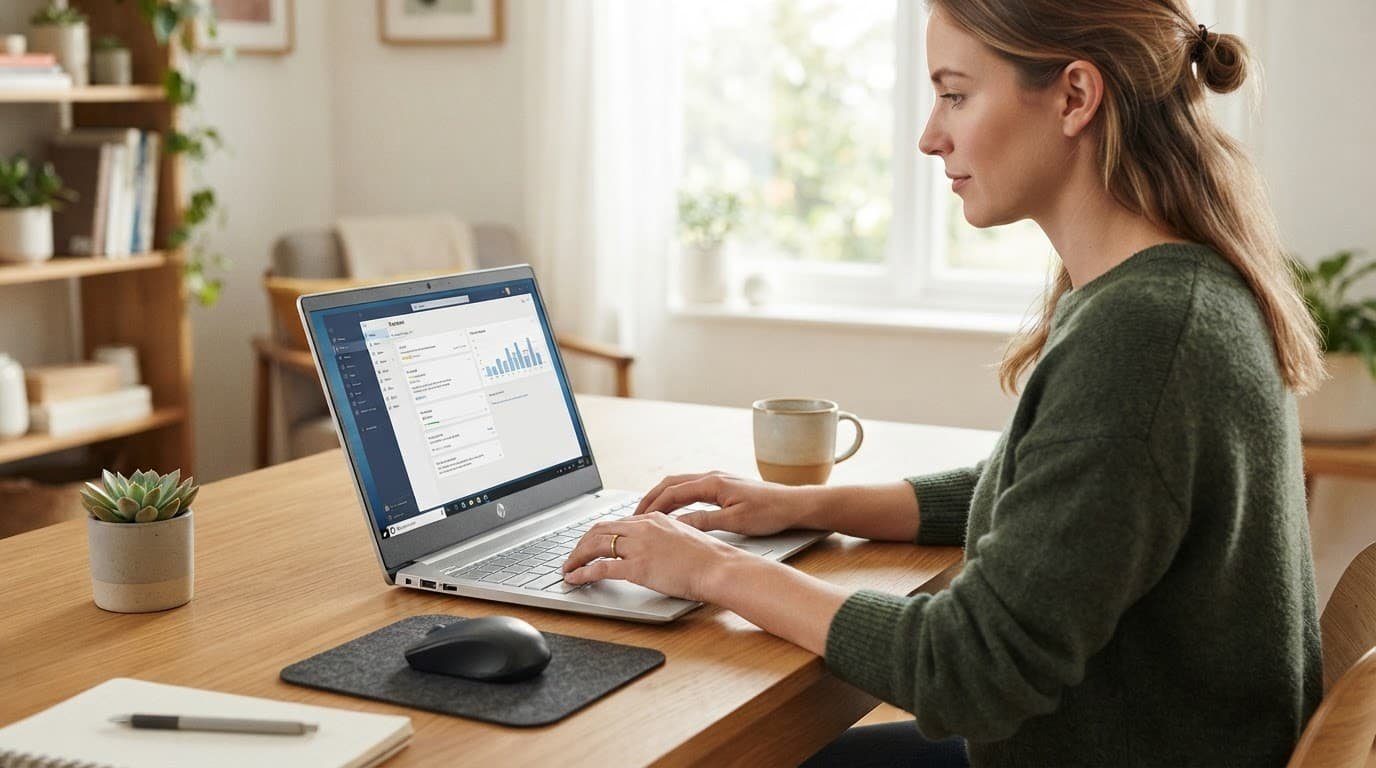
The keyboard shortcuts you choose determine whether Windows saves the image as a file or holds it temporarily on your clipboard. Microsoft’s overview of Windows 11 screenshot options confirms the most useful combinations.
Capture the Entire Screen and Save It Automatically
Press the windows key and PrtSc together to capture the full screen and save the result automatically. If your hp laptop needs it, add the fn key to that combination with your print screen key.
For a moment, your display may dim. That brief flicker usually confirms Windows captured the image. Open File Explorer, then go to your pictures folder to find it.
This is my preferred choice when I need a record I can attach later. You won’t need to open another app before the image exists as a file.
Copy a Screenshot to Paste Into an App
Press PrtSc to copy the full display to your clipboard. It does not create a visible file right away. Instead, open microsoft paint, Microsoft Word, an email draft, or a chat, then press Ctrl + V.
To grab only the active window currently in front of you, press Alt + PrtSc. For example, if a browser window is active, Windows captures that window rather than your taskbar and desktop.
Save a pasted image from microsoft paint if you want to keep it. Otherwise, the clipboard content can disappear when you copy something else.
Select Part of the Screen with Windows + Shift + S
For most everyday tasks, Windows + Shift + S is the fastest answer to how to screenshot on hp laptop. Your display darkens and a small capture bar appears at the top.
Whether you rely on snip and sketch or modern Windows tools, you can choose a rectangular snip, freeform snip, window snip, or full-screen snip. Then drag over the area you need. Windows copies the result to the clipboard and shows a notification.
Select that notification to open the image in the snipping tool, where you can edit or save it. Microsoft lists these Snipping Tool capture controls and their related shortcuts.
A rectangular snip captures only the pixels you select, so it is useful when private tabs, notifications, or browser bookmarks should stay out of the image.
Use the Snipping Tool for More Control on an HP Laptop
Open the Snipping Tool from the Start menu or search for it from the Windows taskbar. I use this app when a shortcut alone won’t catch what I need. If you are using Windows 10, users may see snip and sketch, while Windows 11 unifies these features under the modern snipping tool.
The buttons look a little different depending on your operating system version. However, both versions let you start a new capture, select a mode, and save the finished screen capture.
Take Delayed Screenshots of Menus and Pop-Ups
A delay helps when the item disappears as soon as you click away. In the app, choose the delay option, set the number of seconds, then start the capture.
For example, set a short delay before opening a Windows Settings menu. When the timer ends, select the open menu with your preferred snip mode. This method also works for right-click menus and small pop-up panels to secure a reliable screen capture.
Edit, Copy, and Save the Screenshot
After a capture, the built-in annotation tools, like pens and highlighters, allow quick markup without needing a separate image editor. When preparing instructions with snip and sketch or the newer application, I add a quick highlight using these annotation tools whenever I need someone to notice one button or error line.
Choose png format when you want a sharp image with clear interface details. Choose JPG when a smaller file is more convenient for sharing. Give files useful names, such as wifi-error-july.png, so you can find them later.
Find, Share, and Fix HP Laptop Screenshots
Once you’ve captured the image, you can attach it to email, drag it into a messaging app, or upload it to a support ticket. Rename important files before sharing, especially when several screenshots look alike.
Where Screenshots Are Saved in Windows
Screenshots made with Windows + PrtSc go to your default screenshot folder inside the main pictures folder automatically. If OneDrive backs up your computer, check OneDrive for those image files as well, or look directly within your dedicated screenshot folder located inside the default pictures folder.
In contrast, PrtSc, Alt + PrtSc, and many snips stay on the clipboard until you paste or save them. Open microsoft paint and press Ctrl + V if you can’t find a screenshot file.
Troubleshooting Keyboard Shortcuts That Do Not Work
When facing hardware or software issues, troubleshooting often starts with the print screen key itself. First, try using the fn key along with PrtSc, because many HP laptop keyboards use the top row for media controls instead of the print screen key. Check the key label too, since it may say PrtScn instead.
If that fails, press your windows key alongside Shift and S to use the selection overlay. Restart Snipping Tool if it won’t open, then confirm Windows isn’t frozen. Finally, install available Windows updates and restart the laptop, or update your keyboard driver if the problem persists.
External keyboards may put the print screen key in a different location. Some HP models also let you take screenshots without a print screen key because the windows key shortcut opens Snipping Tool directly.
Which HP Laptop Screenshot Method Should You Use?
Use the method that creates the least cleanup work. The right shortcut depends on how much of the display you need and whether you want a saved file immediately.
| Goal | Best method | Result |
|---|---|---|
| Save the whole display | Windows + PrtSc | File in Pictures > Screenshots |
| Copy one app window | Alt + PrtSc | Clipboard image |
| Capture a selected area | Windows + Shift + S | Clipboard image and notification |
| Capture an open menu | Snipping Tool delay | Editable capture |
When learning how to screenshot on hp laptop devices without guessing, it helps to match your goal to the right command. I recommend Windows + Shift + S for a selected area because it avoids extra cropping and works even when the print screen key is awkward to reach.
Best Shortcut for Full Screen, One Window, or a Selected Area
Choose Windows + PrtSc for a full screen file when you need to save screenshot images instantly. Use Alt + PrtSc for one active window, then paste it with Ctrl + V to save screenshot data into an editor or document.
Press Windows + Shift + S for part of a page, a receipt number, or an error box. Modern hp laptop models do not require a dedicated screenshot button, and you can simply rely on the windows key alongside other shortcuts when the print screen key is unavailable.
Frequently Asked Questions
Where do my screenshots go on an HP laptop?
When you use the Windows + PrtSc shortcut, your captures are automatically saved in your pictures folder inside a dedicated screenshot folder. If you use Windows + Shift + S or PrtSc alone, the image goes straight to your clipboard instead of saving as a file, meaning you need to paste it into an app like Paint or Word.
Why is my Print Screen key not working on my HP laptop?
Many HP keyboards share the print screen key function with media or function keys in the top row. Try holding the fn key at the same time as PrtSc, or use the alternative Windows + Shift + S shortcut to open the built-in snipping overlay.
How do I capture just one active window?
Press the Alt + PrtSc keys together to capture only the active window currently in the foreground. You can then paste this image directly into an email, document, or image editor using Ctrl + V.
Final Thoughts
Most HP laptop screenshots take only one shortcut: PrtSc, Fn + PrtSc, Windows + PrtSc, or Windows + Shift + S. The screen flicker, clipboard notification, or saved Screenshots folder tells you the capture worked.
Use Windows + Shift + S when you want only part of the screen. Choose Windows + PrtSc when you need a complete screen capture on your hp laptop saved right away, and open the snipping tool or legacy snip and sketch features for delays or quick edits. Whenever you need to save screenshot files for later use, these built in Windows methods make the process simple once practiced.